

Free templates
Resume Templates That Get Past the ATS
Preview five professional templates with sample data. Pick the one that fits the job, then use it with your own AI-tailored resume.
- 5 template styles
- ATS-optimized options
- PDF and Word export
- Free to start
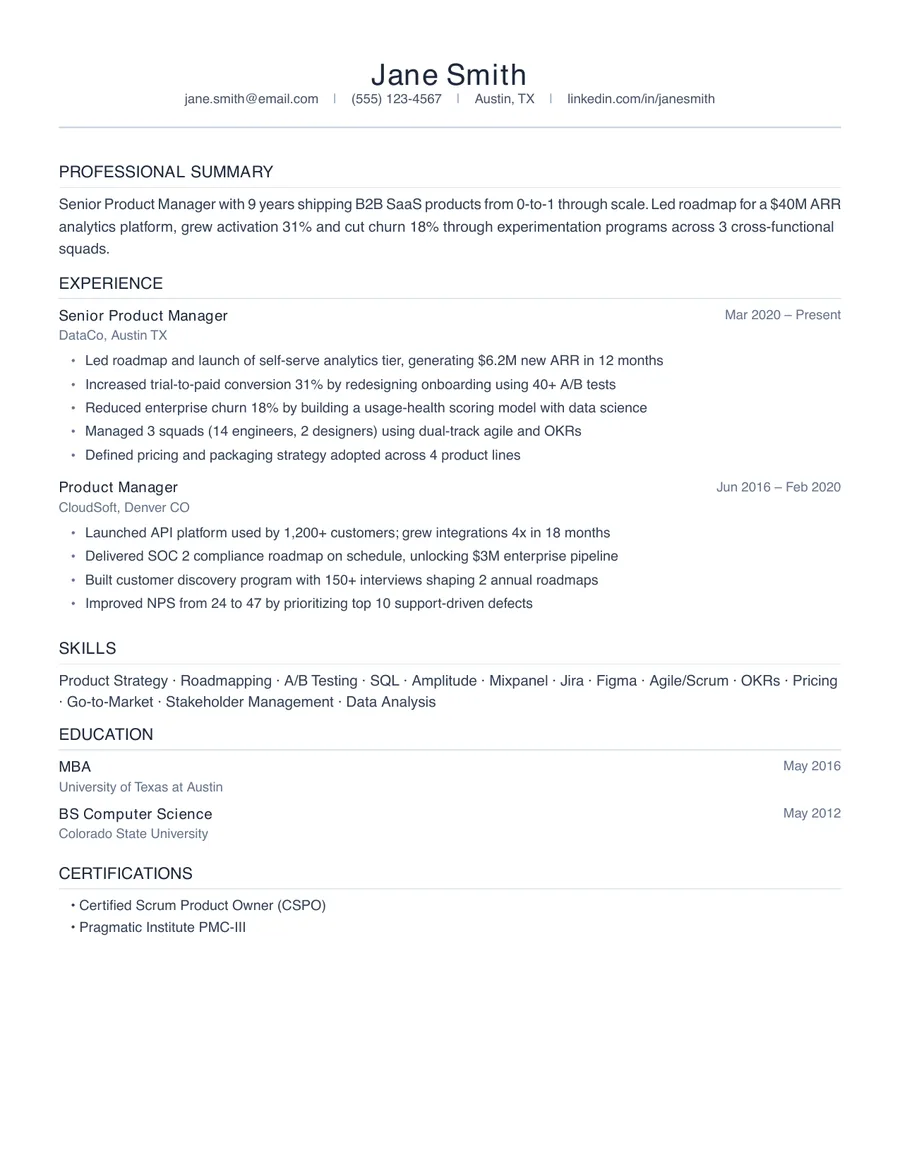
Clean
ATS OptimizedFreeSingle column, minimal, maximum ATS compatibility
Best for: ATS uploads and online applications
- Single-column layout
- Maximum ATS compatibility
- Clean section headers
- Free with any plan
Which template should you use?
The right template depends on where your resume is going. For online job applications that pass through an ATS, use Clean or Professional — both parse perfectly. For creative or tech roles where visual design matters, Modern adds color accents while staying ATS-compatible.
Sending your resume directly to a hiring manager or recruiter? Executive makes a strong visual impression in email attachments and LinkedIn messages. For senior professionals with 15+ years of experience, Compact fits more content per page without looking crowded.
The best approach: tailor your resume to the job description first, then pick the template that matches the submission channel. OneResume lets you switch templates without re-doing any work — tailor once, download in any format.
What makes a template ATS-friendly?
Applicant tracking systems read resumes as plain text. They look for standard section headers (Experience, Education, Skills), parse dates and job titles, and extract keywords to match against the job description.
A template can fail ATS parsing in several ways: tables and columns that scramble reading order, graphics that hide text, non-standard fonts that don't embed properly, and headers or footers that parsers skip entirely.
Our ATS Optimized templates (Clean and Professional) avoid all of these. They use a single-column layout, standard section names, and embedded fonts. You can verify the result with our free ATS score checker.
How to use these templates
- Create a free account and upload your resume or paste it. OneResume builds your master profile from it.
- Tailor to a job — paste a job description and OneResume rewrites your resume to match, highlighting the right keywords and reordering your experience.
- Pick a template — preview your tailored resume in any of the five templates. Switch freely; your content stays the same.
- Download as PDF or Word and submit. Use Clean or Professional for ATS uploads; Executive for direct outreach.
Questions people ask
Are these resume templates really free?
The Clean template is free with any OneResume account, including the free plan. Professional, Modern, Compact and Executive are available on Pro and Pro+ plans.
Which template is best for ATS?
Clean and Professional are ATS-optimized — they parse perfectly through applicant tracking systems. Modern and Compact are ATS-compatible. Executive is visual-only, designed for email and LinkedIn. Check your ATS score
Can I switch templates after tailoring my resume?
Yes. Your tailored content stays the same when you switch templates. Tailor once, then pick the template that fits the situation — Clean for an online application, Executive for a networking email.
Do I need to format my resume manually?
No. OneResume fills every template from your master profile automatically. Upload your resume once, and every template is ready to preview and download as PDF or Word. See how it works
What file formats can I download?
Every template exports as PDF and Word (.docx). Both formats preserve the layout and are ready to upload to any job application portal.
How do I tailor my resume to a specific job?
Paste a job description on the Tailor page and OneResume rewrites your resume to match the role — highlighting the right keywords, reordering bullets, and customizing your summary. Then download it in any template. Tailor your resume free
Pick a template and start tailoring
Upload your resume, tailor it to a job, and download in any template. Free to start.